
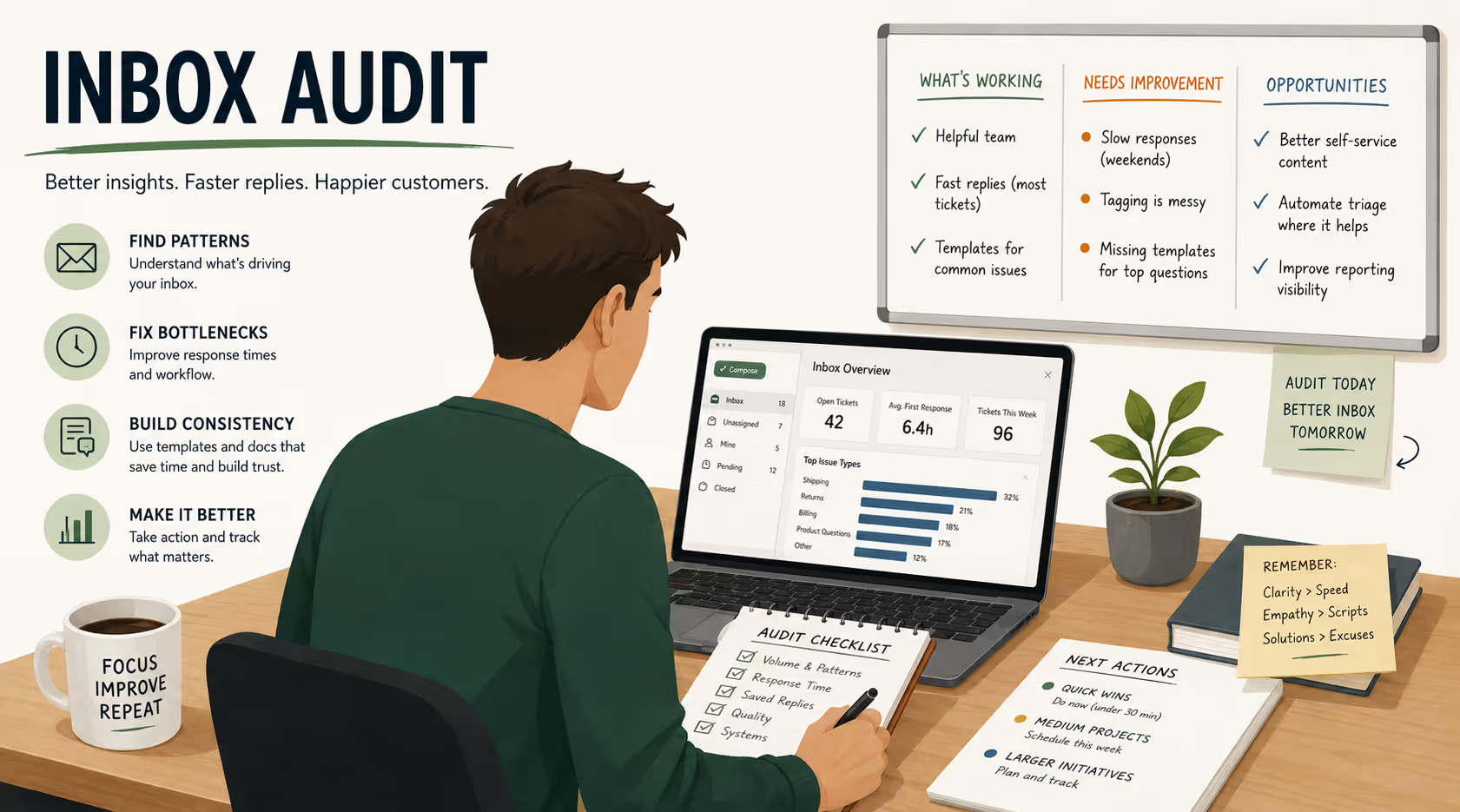
If you've ever looked at your support inbox and thought "this is held together with duct tape and good intentions," you're not alone.
Most small business owners don't have broken support because they're bad at customer service. They have broken support because they've been too busy running the business to step back and examine the system. Emails pile up. Repeat questions multiply. Response times drift. And suddenly you're spending half your day putting out the same fires you extinguished yesterday.
A support inbox audit changes that. It's a focused review that surfaces where customers get stuck, where your response process breaks down, and where your team (or just you) lacks clarity.
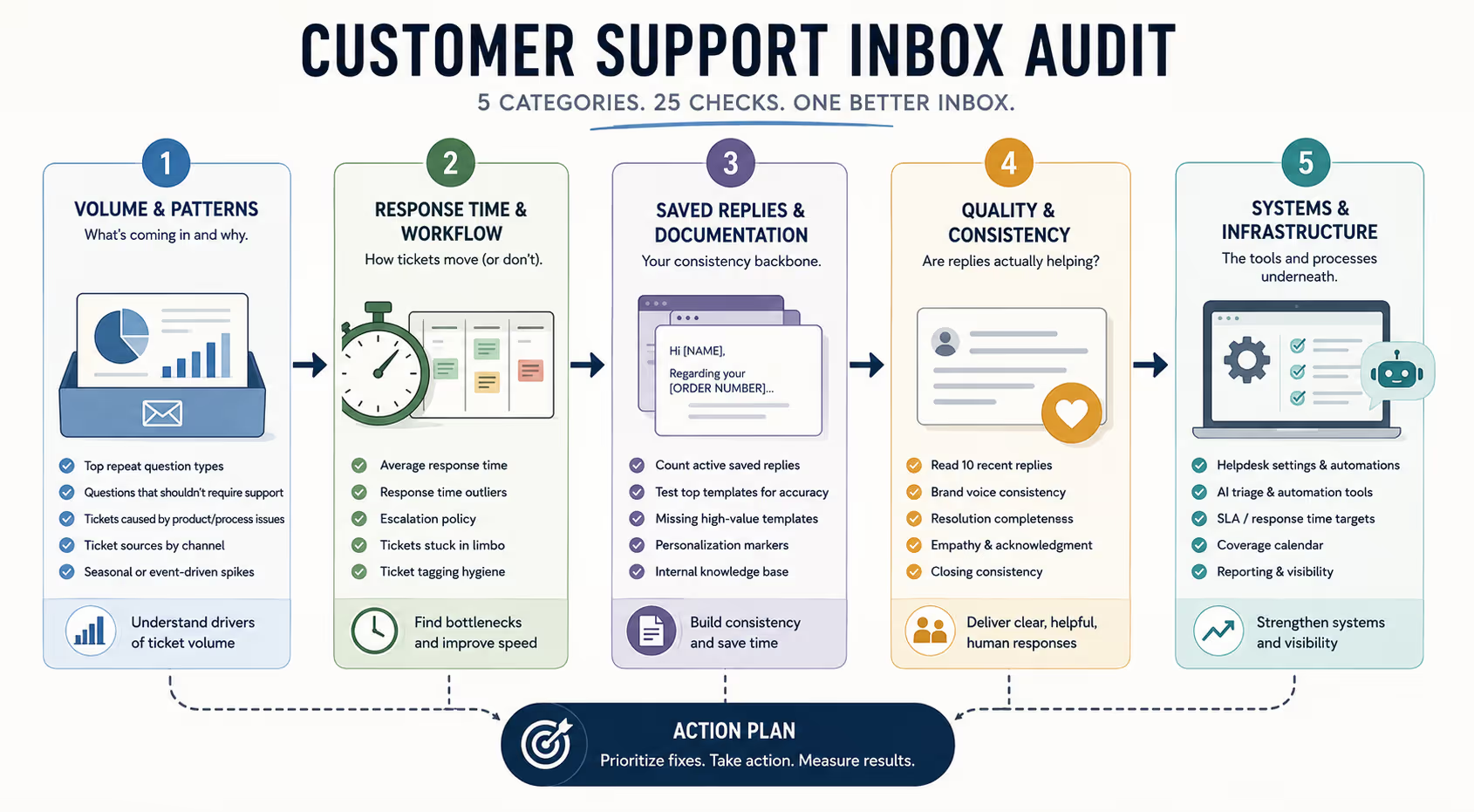
The 25 checks in this guide are organized into a structured diagnostic you can complete in a single focused session—typically two to three hours, depending on how accessible your data is and how messy things have gotten. (If your inbox is in good shape, you might finish faster. If you discover a tagging system where "billing," "billing_issue," "payment," and "$$_problem" all exist as separate categories, budget extra time.)
Here's what you'll cover:
Volume & Patterns — what's coming in and why
Response Time & Workflow — how tickets move (or don't)
Saved Replies & Documentation — your consistency backbone
Quality & Consistency — are replies actually helping?
Systems & Infrastructure — the tools and processes underneath, including automation and AI triage
The payoff is a concrete action plan instead of a vague sense that "things could be better."
What a Customer Support Inbox Audit Actually Accomplishes
Before diving into the checks, it helps to know what you're looking for. A good audit reveals three things:
Where customers get stuck repeatedly — which creates avoidable ticket volume
Where your response process breaks down — which creates inconsistent reply times
Where your team lacks clarity — which creates quality variance across replies
Most inbox problems aren't about effort. They're about systems—or the lack of them.
Category 1: Ticket Volume and Pattern Analysis
Start by understanding what is coming into your inbox and why. These five checks help you spot the repeat offenders and systemic issues driving unnecessary ticket volume.
Check 1: Identify Your Top 5 Repeat Question Types
Action: Pull up your last 50–100 tickets. Scan subject lines and opening sentences. Write down the themes that appear again and again.
For ecommerce, common repeats include shipping status inquiries, return policy questions, and payment failures. For SaaS, expect password resets, feature confusion, and billing disputes.
These are your highest-leverage improvement opportunities. If the same question shows up 15 times a week, fixing it upstream (better docs, clearer UI, proactive email) saves hours.
Check 2: Flag Questions That Shouldn't Require Support
Action: Look for questions like "Where do I find my invoice?" or "How do I cancel?" or "What's your return window?"
These signal gaps in your self-service resources—not customer neediness. According to Zendesk's research on self-service, most customers actually prefer finding answers themselves when the option exists [1]. If they're emailing you, it's because they couldn't find it.
Mark these. They're prime candidates for a FAQ update or a clearer help center.
Check 3: Count Tickets Caused by Product or Process Issues
Action: Separate "how do I" questions from "this is broken" reports.
If a specific bug or confusing workflow generates multiple tickets weekly, that's a product problem wearing a support costume. You can answer these tickets all day, but the volume won't drop until someone fixes the root cause.
Keep a tally. This data is ammunition for prioritizing fixes upstream with your team (or yourself, if you're the team).
Check 4: Review Ticket Sources by Channel
Action: Where are tickets originating? Contact form? Reply-to emails? Social media forwarded into the inbox?
Channel distribution affects response time expectations. HubSpot's research on response times shows that email customers generally tolerate longer waits than social media complainers, who often expect replies within an hour [2]. Knowing where your volume concentrates helps you set realistic SLAs.
Check 5: Check for Seasonal or Event-Driven Spikes
Action: Scan the past three months of ticket dates. Do spikes correlate with product launches, sales events, or billing cycles?
Predictable volume surges can be mitigated with proactive communication—like a banner warning customers about shipping delays before they email you. Unpredictable spikes may indicate underlying issues worth investigating.
Category 2: Response Time and Workflow Efficiency
Now examine how tickets move through your system. These checks reveal where things get stuck.
Check 6: Calculate Your Actual Average Response Time
Action: Pull a sample of 20 recent tickets and manually check first-response times. Compare this to whatever your dashboard says.
Dashboard averages can hide outliers. If most tickets get replies in 4 hours but 15% sit for 48 hours, your average looks fine while customers have wildly inconsistent experiences. That inconsistency erodes trust faster than slow-but-predictable replies.
Check 7: Identify Response Time Outliers
Action: Find your slowest 10% of tickets from the past month. What do they have in common?
Common culprits include tickets requiring input from another team member, complex technical questions, and tickets that arrived during coverage gaps (evenings, weekends, Monday mornings). Help Scout's research on reducing response time notes that simply knowing where delays happen is often enough to fix them [3].
Check 8: Review Your Escalation Policy
Action: Try to describe, right now, exactly when a ticket should leave the primary support queue and who it should go to.
If the answer involves "it depends" or "I just know," that's a gap. Unclear escalation creates bottlenecks and inconsistent handling. Write down even a rough version—you can refine it later.
Check 9: Check for Tickets Stuck in Limbo
Action: Look for tickets marked "pending" or "waiting on customer" for more than 72 hours.
These often represent follow-ups that never happened, customer responses that got missed, or issues nobody knew how to close. Limbo tickets inflate your open count and frustrate customers who think they're still waiting.
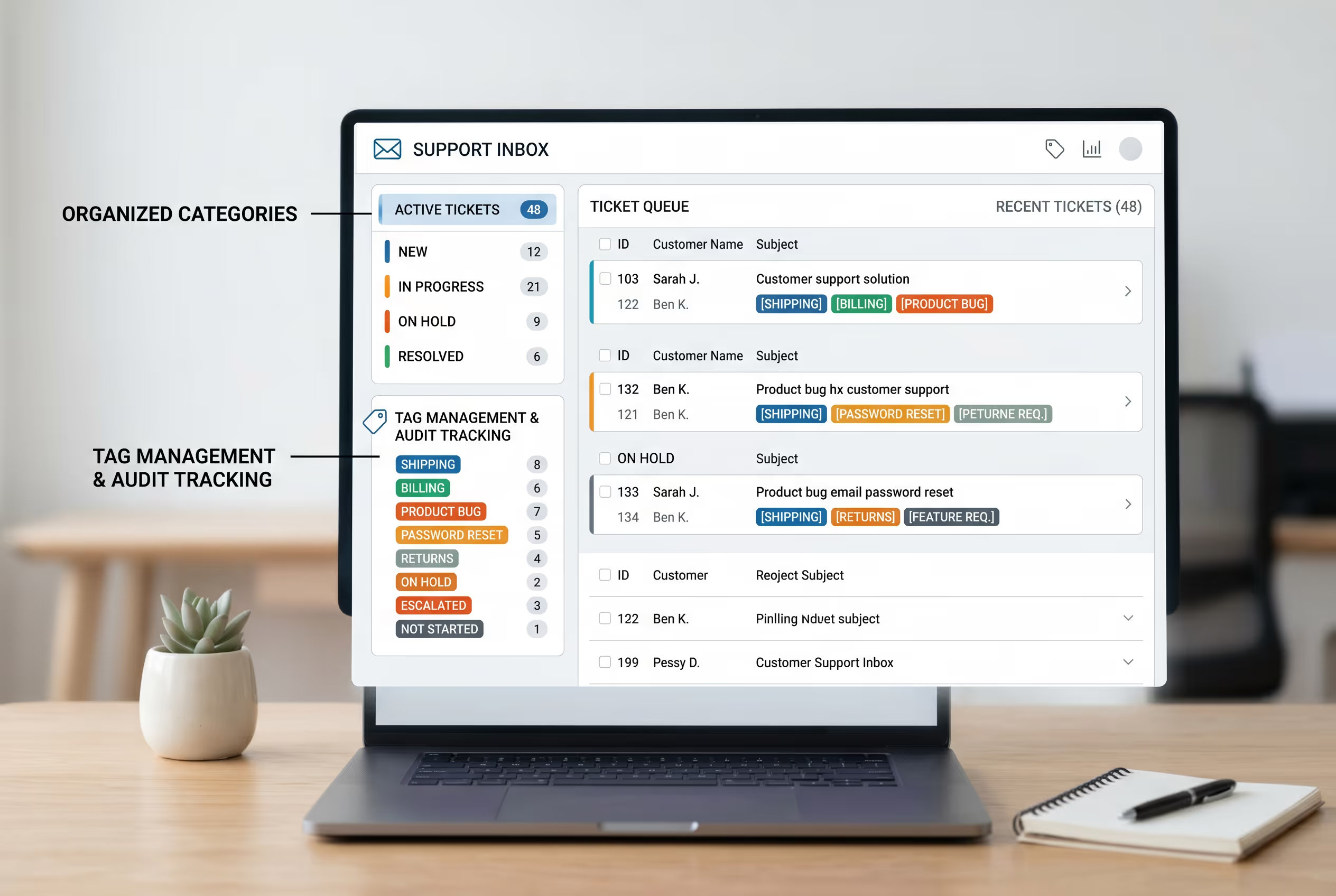
Check 10: Evaluate Your Ticket Tagging Hygiene
Action: Open your tag or category list. Count how many you have. Check how consistently they're applied.
Messy tagging undermines every report you pull. If "billing" and "billing_issue" and "payment" all exist as separate tags, your data is fragmented and useless for spotting patterns.
I once audited an inbox that had 47 tags, including gems like "urgent_urgent" and "idk." Nobody could tell me what half of them meant.
Quick fix: Consolidate ruthlessly. Fewer than 15 tags typically covers 90% of use cases for small teams.
Category 3: Saved Replies and Documentation Quality
Your saved replies (also called macros or templates) are the backbone of consistent, efficient support. This section checks whether that backbone is solid or crumbling.
Check 11: Count Your Active Saved Replies
Action: How many do you have? A healthy library for a small team typically includes 15–30 templates covering common scenarios.
Zero saved replies means every response is written from scratch—slow and inconsistent.
Hundreds of saved replies means nobody can find the right one—also slow and inconsistent.
Check 12: Test Your Top 5 Saved Replies for Accuracy
Action: Pull up your most-used templates. Read them as if you were the customer receiving them.
Are they still accurate? Do links work? Is the tone consistent with your current brand voice? Stale templates create errors that require follow-up tickets to fix—the opposite of efficiency.
Check 13: Check for Missing High-Value Templates
Action: Cross-reference your top repeat questions (from Check 1) against your saved reply library. Any gaps?
If "how do I get a refund" generates 20 tickets monthly but lacks a template, that's 20 opportunities to save time—wasted. Groove's research on customer service emails emphasizes that templates with personalization spots save time and maintain quality [4].
Check 14: Review Template Personalization Markers
Action: Do your templates include spots for personalization—customer name, specific order details, acknowledgment of the actual issue?
Templates that read like form letters damage trust. Templates that blend automation with human touches save time and build relationships. Look for [CUSTOMER NAME], [ORDER NUMBER], or similar placeholders.
Check 15: Evaluate Your Internal Knowledge Base
Action: Do you (or your support agents) have access to documented answers for common scenarios? Not customer-facing help docs—internal reference material.
This matters most for technical products or complex policies. If answering a billing edge case requires messaging someone else or hunting through old emails, that's a knowledge gap worth closing.
Category 4: Quality and Consistency Assessment
Fast replies mean nothing if they don't actually help customers. These checks ensure your responses serve people well—not just quickly.
Check 16: Read 10 Random Recent Replies Critically
Action: Pull a sample of responses sent in the past two weeks. Read them as a customer would.
Ask yourself:
Are they clear?
Are they warm but professional?
Do they actually answer the question asked, or just respond to it vaguely?
Note patterns—good and bad. This is often where founders realize their 11pm replies sound very different from their 10am replies. (The late-night ones sometimes include phrases like "per my last email," which is never a good sign.)
Check 17: Check for Brand Voice Consistency
Action: Compare replies written by different team members (or by you on different days). Do they sound like they came from the same company?
Tone drift is normal over time. Periodic voice checks catch it before customers notice the inconsistency. If you're a solo operator, compare your Monday replies to your Friday afternoon replies—you might be surprised.
Check 18: Evaluate Problem Resolution Completeness
Action: Are replies actually resolving issues, or just responding to them?
A reply that says "I've reset your password and you should receive a new login link within 5 minutes" is complete. A reply that says "Try resetting your password using the link in your account settings" requires the customer to do more work—and often generates a follow-up ticket.
Check 19: Look for Empathy and Acknowledgment Patterns
Action: Scan your sample replies for phrases that acknowledge customer frustration before jumping to solutions.
Something like "I understand how frustrating it is when payments fail unexpectedly" costs nothing and changes the entire tone of an interaction. Its absence makes efficient replies feel cold.
Check 20: Check Your Closing Consistency
Action: How do replies end? With a clear next step? An invitation to follow up? A generic "Thanks"?
Strong closings confirm resolution and make customers feel cared for. Weak closings leave ambiguity about whether the issue is actually done. Look for patterns like "Let me know if you need anything else" versus just... ending.
Category 5: Systems and Infrastructure Review
Finally, examine the tools and processes supporting everything above. Even great replies can't overcome broken infrastructure.
Check 21: Verify Your Helpdesk Settings and Automations
Action: Are auto-responses working correctly? Do assignment rules route tickets to the right people?
Small configuration errors compound over time. A broken auto-reply makes customers wonder if their message was received. Incorrect routing adds unnecessary handling time. Send yourself a test ticket and trace its journey.
Check 22: Evaluate AI Triage and Automation Tools
If you're using any AI-powered tools for ticket categorization, suggested replies, or chatbot deflection, assess their performance.
Check whether AI categorization is accurate (or creating more confusion than it solves). Review chatbot deflection rates—are customers getting stuck in loops before reaching a human? Look at suggested reply adoption—are agents using them, or ignoring them because they're unhelpful?
For small teams especially, AI tools can either streamline workflows or add complexity that nobody maintains. Be honest about whether yours are helping. If your chatbot's most common outcome is customers typing "HUMAN" in all caps, that's data.
Check 23: Review Your SLA or Response Time Targets
Do you have explicit response time targets? Are they documented and known to everyone handling tickets?
"We try to reply quickly" isn't a target. "First response within 24 hours on business days" is a target. Freshworks' guide to SLAs notes that even informal targets improve accountability when they're written down [5].
Check 24: Check Your Coverage Calendar
Action: When does someone actually monitor and respond to the inbox? Are there gaps?
Map out your current coverage honestly. Many small teams discover they have no real coverage on Monday mornings (when weekend tickets pile up) or Friday afternoons (when people check out early).
Check 25: Assess Your Reporting and Visibility
Action: Can you easily answer basic questions about your support performance? Average response time? Ticket volume trends? Most common issue types?
If pulling reports requires manual effort or guesswork, you're flying blind. Good decisions require good data. Even a simple weekly count of tickets by category beats nothing.
Turning Audit Findings Into Action
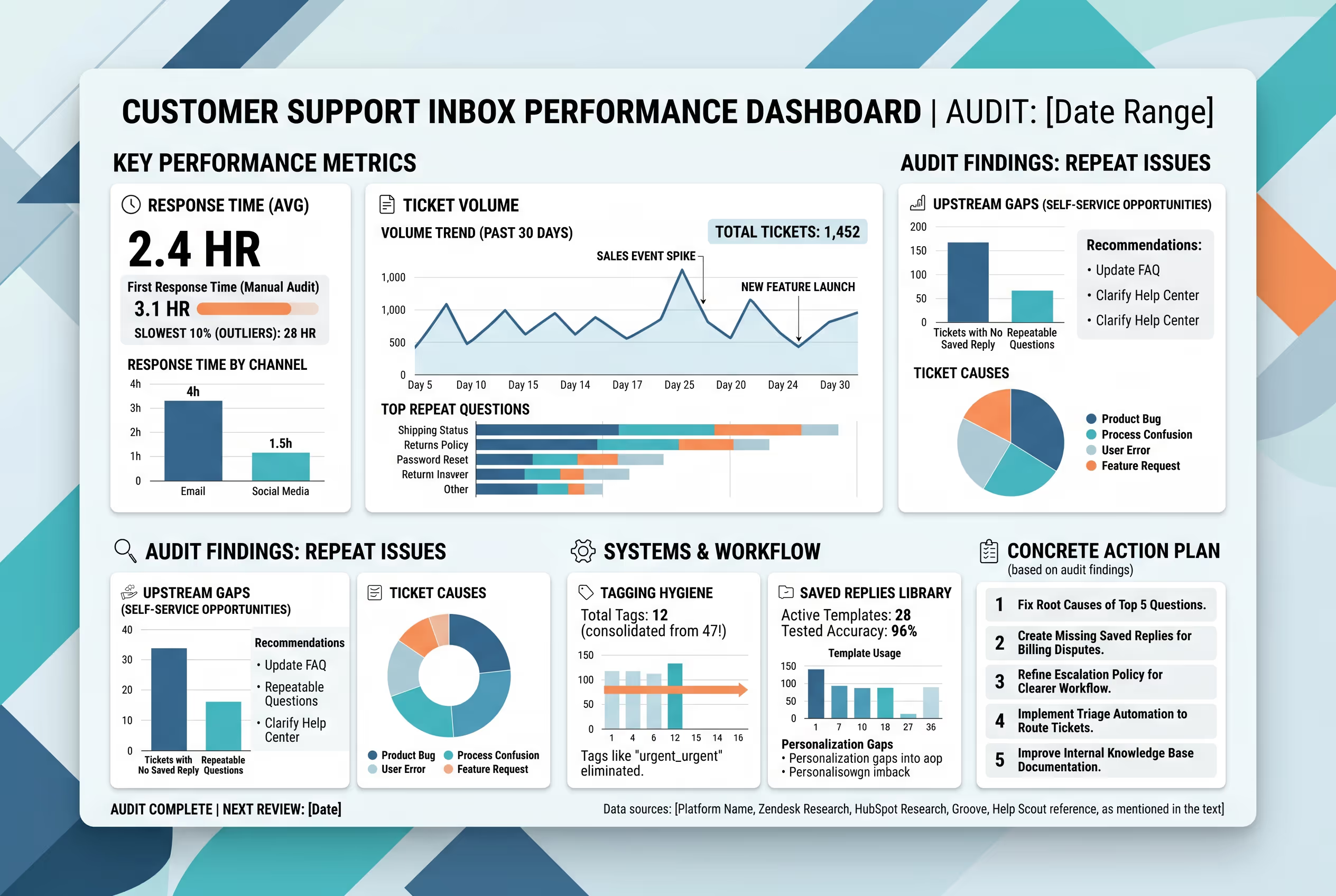
You've now identified problems. The next step is prioritization.
Sort your findings into three buckets:
Quick wins (under 30 minutes to fix): Template updates, tag consolidation, configuration corrections. Do these immediately—maybe even before you finish reading this article.
Medium projects (a few hours): Creating missing templates, documenting escalation policies, building internal knowledge base entries. Schedule these within the next two weeks.
Larger initiatives (ongoing effort): Addressing product issues causing tickets, restructuring coverage, training on voice consistency, evaluating whether your AI tools are actually helping. Add these to your roadmap with realistic timelines.
The goal isn't perfection. It's making your inbox measurably better than it was before—and creating visibility into what still needs work.
Want a printable version? Download the 25-point audit checklist as a spreadsheet to track your findings and action items.
When the Audit Reveals You Need More Than Fixes
Sometimes an audit surfaces a harder truth: your support workload has outgrown your capacity to handle it well.
If you're spending hours daily in the inbox, skipping the audit checks because "there's no time," or watching response times creep upward despite your best efforts—that's not a process problem. That's a bandwidth problem.
Overwhelmed founders often try to solve this by working harder. But human support requires human hours, and yours are finite.
Whether you hire internally, bring on a part-time contractor, or partner with a support agency, the answer involves getting more hands in the inbox. The audit helps you see what's actually happening. What you do with that knowledge is up to you.
If you want expert eyes on your specific situation, consider requesting a free Inbox Audit from Evergreen Support. We'll review your support inbox, identify your highest-impact opportunities, and give you actionable recommendations—whether or not you ever work with us.
Ready to get your inbox under control? Book a call to discuss your support situation or request your free Inbox Audit.
Frequently Asked Questions
How often should I run a customer support inbox audit?
Quarterly audits work well for most small teams. Run additional audits after significant changes—new product launches, team transitions, or helpdesk migrations. Once you've done the first one, subsequent audits go faster because you know where to look and you've already fixed the obvious issues.
Can I run this audit if I'm the only person handling support?
Absolutely. Solo support operators often benefit most from systematic audits because there's no team to catch inconsistencies. The checklist helps you see patterns that are invisible when you're head-down in tickets daily. It's also useful documentation if you ever need to hand off support to someone else—or explain to a partner why you need help.
What's the most common issue found in inbox audits?
Missing or outdated saved replies cause the most preventable inefficiency. Most small teams underinvest in templates, leading to repeated work writing similar responses from scratch. Fixing this typically delivers the fastest time savings—often hours per week reclaimed with just 5-10 solid templates covering your repeat questions.
Should I use different metrics for SaaS versus ecommerce support?
The core metrics (response time, resolution rate, repeat ticket volume) apply across both. However, SaaS teams should track technical escalation frequency and feature request patterns, while ecommerce teams should monitor returns, shipping inquiries, and order modification requests as separate categories. The underlying framework is the same; the specific tags and categories differ.
What response time should small businesses target for email support?
According to SuperOffice's customer service benchmark report, most customers expect email replies within 24 hours on business days [6]. Responding faster improves satisfaction, but consistency matters more than speed. A reliable 12-hour response time builds more trust than an erratic mix of 2-hour and 48-hour replies. Pick a target you can actually hit, then work on improving it.
About This Guide
This inbox audit framework was developed from hands-on experience managing customer support for small SaaS and ecommerce businesses. We've seen what creates repeat tickets, what causes response time variance, and what makes the difference between support that frustrates customers and support that builds loyalty.
Evergreen Support provides US-based, human-powered email support for small online businesses. Our team handles daily inbox management, documentation, and process improvement—so founders can focus on growing their business instead of drowning in customer emails.
Cited Works
[1] Zendesk — "Customer self-service: Putting the power in their hands." https://www.zendesk.com/blog/customer-self-service/
[2] HubSpot — "Customer Service Response Time: What It Is & How to Improve It." https://blog.hubspot.com/service/customer-service-response-time
[3] Help Scout — "How to Reduce Customer Service Response Time." https://www.helpscout.com/blog/reduce-response-time/
[4] Groove — "How to Write Customer Service Emails That Don't Suck." https://www.groovehq.com/blog/customer-service-emails
[5] Freshdesk — "What is a Service Level Agreement (SLA)?" https://www.freshworks.com/freshdesk/customer-service-sla/
[6] SuperOffice — "Customer Service Benchmark Report." https://www.superoffice.com/blog/customer-service-benchmark-report/


