

You finally picked a help desk. Maybe it's Help Scout, Zendesk, Front, or something else entirely. The trial is active, tickets are flowing in, and you're feeling good.
Then reality hits: your co-founder accidentally deleted a saved reply you spent an hour writing. Your part-time VA exported your entire customer list "just to check something." And nobody can figure out who closed that angry ticket without actually resolving it.
Sound familiar? For teams of one to five people, help desk permissions often feel like overkill—until they don't. The truth is, setting up proper roles, access levels, and audit trails before you bring on help (whether that's an employee, contractor, or outsourced support partner) saves you from messy cleanups later.
This guide walks you through the exact permissions structure that works for tiny teams. No enterprise jargon. No 47-tier org charts. Just a practical recipe you can implement in an afternoon.
Why Permissions Matter More for Small Teams
Here's the counterintuitive thing about small teams: you actually need clearer permission boundaries than big companies do.
In a 200-person support org, one person making a mistake affects a small slice of tickets. In a three-person operation, that same mistake can touch everything. Your entire customer relationship history, billing access, automation rules—it's all within reach of everyone by default.
This isn't just about preventing accidents. Security professionals call it the "principle of least privilege"—the idea that people should have access only to what they genuinely need for their role [1]. For small teams, this principle matters even more because the blast radius of any single error is so much larger.
Most help desk platforms ship with generous default permissions. That's great for getting started quickly. It's less great when:
Someone changes a workflow automation without telling anyone
A contractor sees billing information they shouldn't
You can't figure out who edited a customer's account details
A team member accidentally bulk-closes 50 tickets
The fix isn't bureaucracy. It's spending 30 minutes upfront to map out who genuinely needs access to what. Think of it like giving house keys to a pet sitter—you want them to access the kitchen, not your filing cabinet.
The Four Permission Categories Every Help Desk Offers
Regardless of which platform you use, permissions typically fall into four buckets. Understanding these makes configuration much simpler.
Conversation Access
This controls which tickets or conversations a user can see and respond to. Options usually include:
All conversations: Full visibility across every ticket
Assigned only: Users see only tickets specifically assigned to them
Team-based: Access limited to tickets within designated teams or inboxes
For tiny teams, "all conversations" is often practical since context-switching between accounts gets clunky fast. But if you handle multiple brands or clients, team-based access keeps things cleaner.
Administrative Functions
This covers the behind-the-scenes stuff: creating saved replies, setting up workflows, managing tags, adjusting automation rules. These permissions determine who can change how your help desk operates—not just use it.
The distinction matters. Someone might need to answer tickets all day without ever touching your workflow automations.
Customer Data Operations
Export rights, bulk actions, and access to customer records beyond what's needed to resolve individual tickets. This is where things get sensitive.
Exporting customer data, viewing purchase history, or accessing billing information should be limited to people who genuinely need it. A support agent resolving a password reset doesn't need export rights to your full customer database.
Account-Level Settings
Billing, integrations, user management, and security settings. In most setups, only founders or operations leads should have this access. Period.
A Practical Roles Map for 1–5 Person Teams
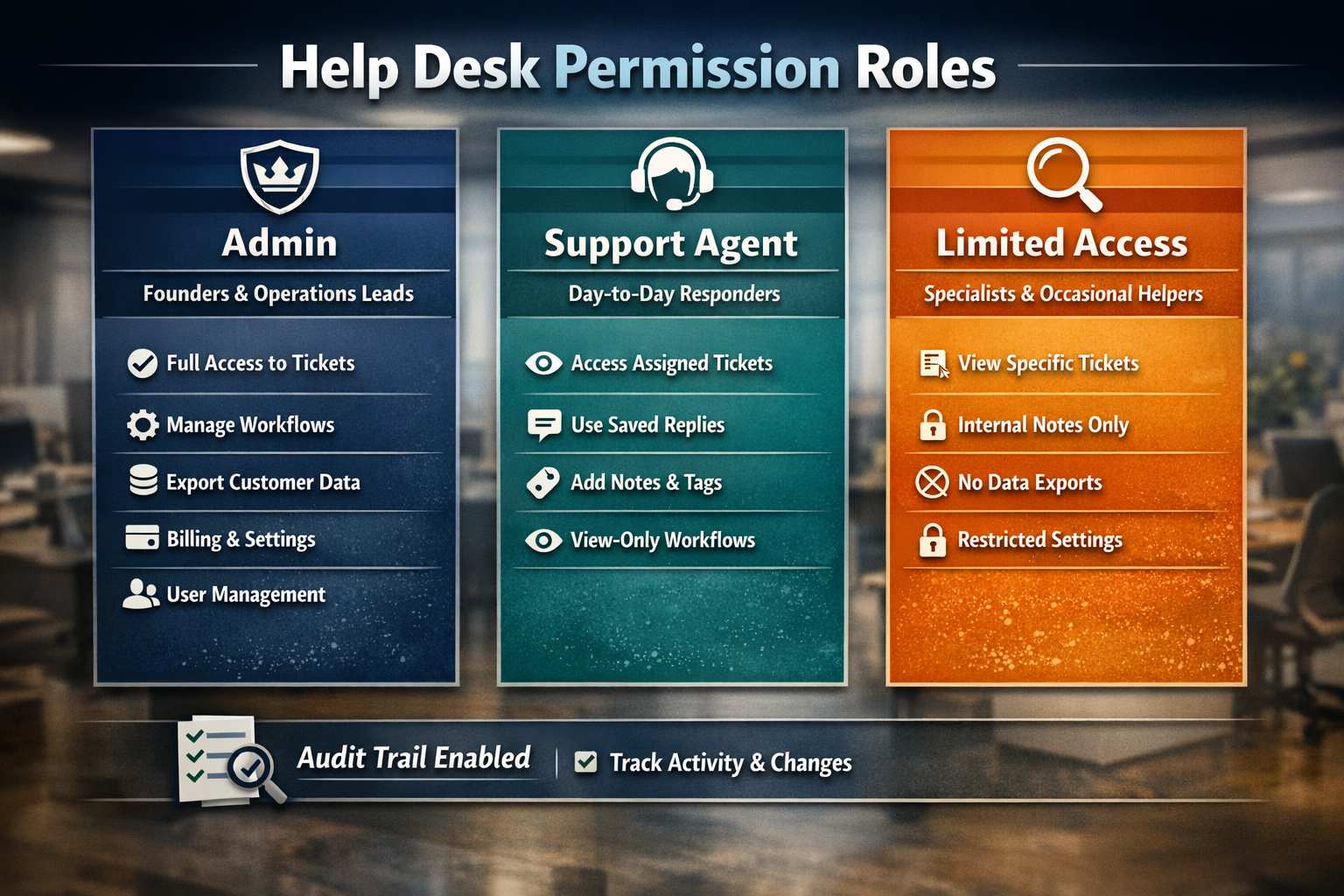
Forget the elaborate role hierarchies designed for enterprise companies. For small teams, three roles typically cover everything you need.
Role 1: Admin (Founders and Operations Leads)
Who this is for: The person (or people) ultimately responsible for the business and its systems.
Permissions to grant:
Full conversation access
All administrative functions
Complete customer data operations including exports
Account-level settings and billing
User management (adding/removing team members)
Integration configuration
Why it works: Someone needs the keys to the castle. In a tiny team, that's usually the founder or a trusted operations lead. Limiting this to one or two people creates clear accountability.
Role 2: Support Agent (Day-to-Day Responders)
Who this is for: Anyone whose primary job is answering customer questions—employees, contractors, or outsourced team members.
Permissions to grant:
Conversation access (all or team-based, depending on your setup)
Ability to use saved replies and templates
Basic tagging and categorization
Internal notes and collaboration features
View-only access to workflows (so they understand the system)
Permissions to restrict:
Creating or editing saved replies (unless specifically needed)
Modifying workflows or automations
Customer data exports
Billing or account settings
Adding/removing users
Why it works: Support agents need everything required to resolve tickets efficiently. They don't need the ability to change how the system works or access data beyond what's necessary for the conversation in front of them.
Role 3: Limited Access (Specialists and Occasional Contributors)
Who this is for: People who dip into support occasionally—maybe your developer handles technical escalations, or your designer reviews feedback tags.
Permissions to grant:
Assigned conversations only (or specific tag-based views)
Internal notes
Basic tagging
Permissions to restrict:
Replying to customers (optional, depending on their role)
All administrative functions
Customer data operations
Account settings
Why it works: Not everyone needs full support agent access. A developer reviewing bug reports just needs to see relevant tickets and add context. They don't need to reply directly or access your workflow settings.
Setting Up Audit Trails (Your Future Self Will Thank You)
Permissions tell people what they can do. Audit trails tell you what they actually did. Both matter.
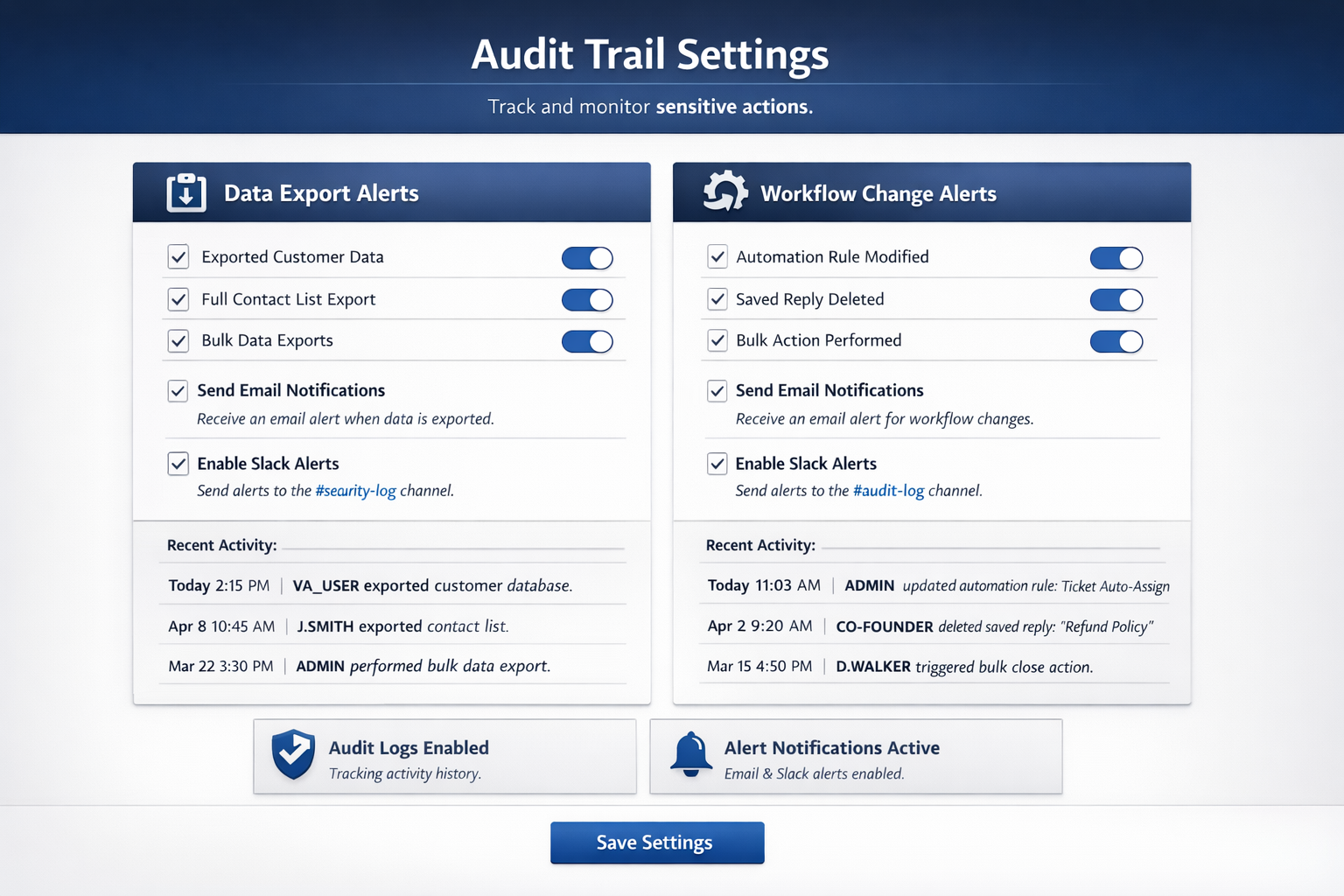
Most modern help desks include activity logs that track:
Who accessed or modified a ticket
Changes to saved replies and workflows
Customer data exports
Login activity and session information
Bulk actions (mass tagging, closing, reassigning)
What to Review Regularly
You don't need to obsess over logs daily. But a quick monthly check catches issues before they become problems.
Look for:
Unexpected data exports
Changes to automations or saved replies you didn't authorize
Unusual access patterns (someone viewing tickets outside their normal scope)
Bulk actions that seem off
Pro tip: Most platforms let you set up notifications for sensitive actions. Configure alerts for data exports and workflow changes at minimum. It takes five minutes and surfaces problems immediately.
Why This Matters Before You Outsource
If you're considering bringing on an outsourced support partner, audit trails become especially important. Not because you shouldn't trust your partner—but because clear records protect everyone.
When you can see exactly what happened and when, finger-pointing becomes unnecessary. If a customer claims they never got a response, you can verify. If a workflow suddenly breaks, you can identify the change. Good audit practices make collaboration smoother, not more suspicious.
Platform-Specific Quick Wins
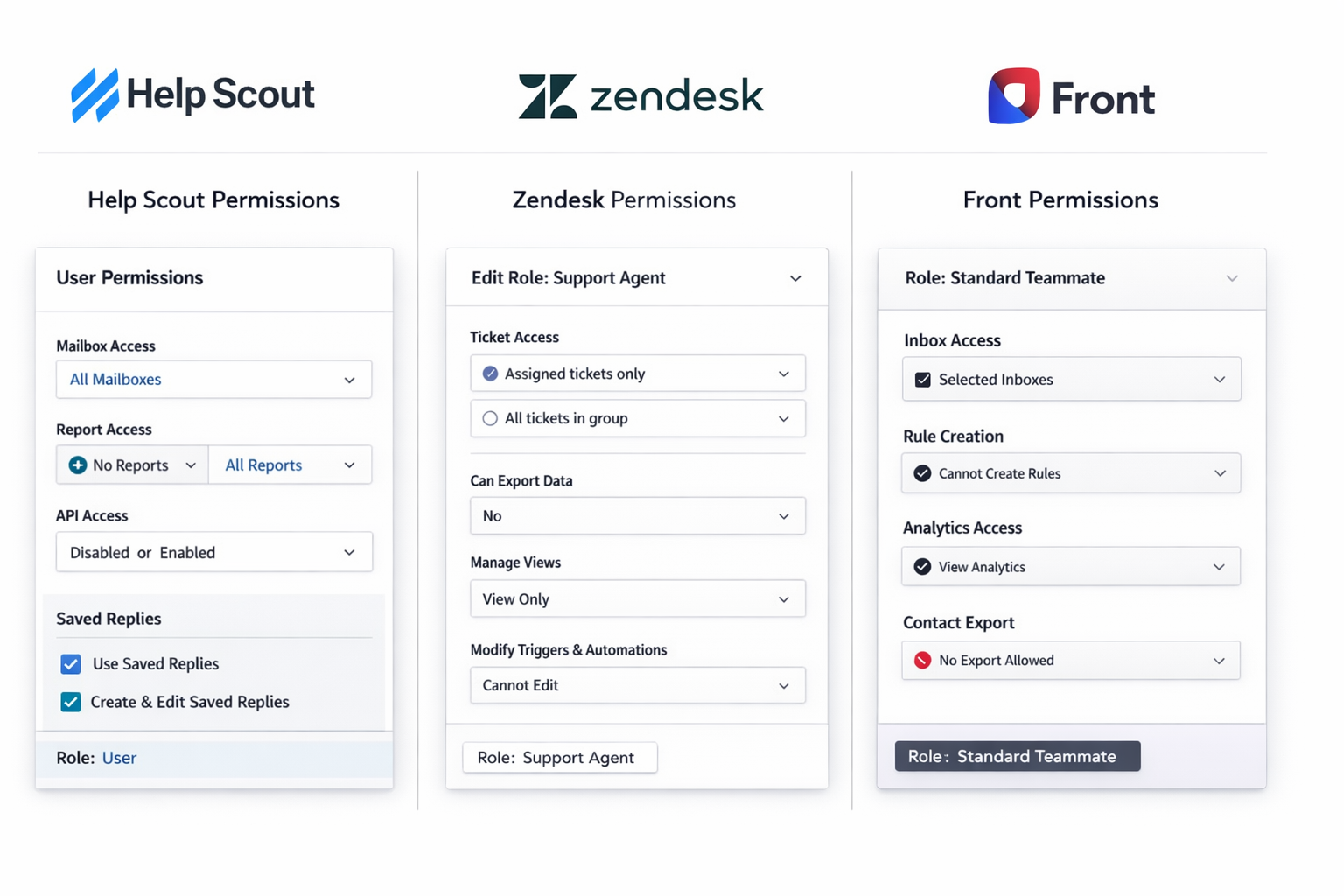
Every help desk handles permissions slightly differently. Here's how to find the right settings in the most common platforms for small teams—including one "gotcha" setting per platform that catches people off guard.
Help Scout
Navigate to Manage → Users to configure individual permissions. Help Scout uses a straightforward model: Owners, Administrators, and Users. For most small teams, one Owner (founder), one or two Administrators (trusted leads), and Users for everyone else works well [2].
Key settings to check:
Mailbox access: Control which inboxes each user can see
Reports access: Limit who can view team performance metrics
API access: Restrict unless specifically needed
Hidden gotcha: Help Scout's "User" role can still create and edit saved replies by default. If you want agents to use templates but not modify them, you'll need to manage this through workflow or communicate expectations clearly—there's no granular toggle for "use only" on saved replies.
Zendesk
Head to Admin Center → People → Roles to create custom roles. Zendesk's default roles (Admin, Agent, Light Agent) often work, but custom roles give you finer control [3].
Key settings to check:
Ticket access: Configure group-based visibility
Side conversations: Control who can loop in external parties
Data export: Found under Admin Center → Account → Security
Hidden gotcha: The "Light Agent" role sounds restrictive, but light agents can still view all tickets in groups they belong to. If you want someone to see only their assigned tickets, you need to configure a custom role with "Tickets in requester's organization" or similar scoping—not just use the default Light Agent.
Front
Go to Settings → Company → Roles to manage permissions. Front's role system is flexible but can get complex—stick to two or three roles for sanity [4].
Key settings to check:
Inbox visibility: Control per-inbox access
Rules access: Limit who can create or modify automations
Analytics: Decide who sees performance data
Hidden gotcha: Front's "Rules" (automations) can be created at the individual, team, or company level. Team members with "Teammate" access might still be able to create personal rules that affect shared inboxes in unexpected ways. Review the rules hierarchy and consider restricting personal rule creation if you want tighter control.
General Tips Across Platforms
Start restrictive, then loosen: It's easier to grant access than to revoke it after someone's used to having it
Document your choices: A simple spreadsheet noting "why" behind each permission saves confusion later
Review quarterly: As your team evolves, permissions should too
In-House vs. Agency Setups: Permission Differences
Setting up permissions for an employee differs from configuring them for an outsourced support agency. Here's how to think about each.
In-House Employee Setup
With employees, you typically grant more administrative access over time. They're learning your business deeply, and eventually, they might need to create saved replies or adjust minor workflow elements.
Starting permissions:
Full conversation access
Use of saved replies and templates
Basic tagging and categorization
Permissions to add as they grow:
Creating and editing saved replies
Managing tags and categories
View/suggest changes to workflows
What stays restricted:
Customer data exports (unless specifically needed)
Account settings and billing
User management
Outsourced Agency Setup
With an agency partner, you're typically working with a team rather than individuals. The agency manages their own people; you manage the boundaries of what they can access.
Standard permissions:
Conversation access (full or team-based depending on scope)
Use of saved replies and templates
Tagging per your agreed categories
Internal notes for collaboration and escalations
What stays with you:
Creating and editing saved replies (you approve, they use)
Workflow and automation management
Customer data exports
All account-level settings
Why this works: Good agencies don't want admin access—they want clear processes. When Evergreen Support onboards a new client, we actually prefer that workflow ownership stays with you. Our job is to execute within the system you've built, not to redesign it without your input. That's why we typically use whatever help desk you already have rather than forcing a switch [5].
The cleaner your permissions setup before an agency starts, the smoother the handoff. An agency working within well-defined boundaries can focus on what matters: answering customers quickly and well.
Common Permission Mistakes (and How to Avoid Them)
After helping small businesses set up support systems, certain mistakes show up repeatedly. Here's what to watch for.
Mistake 1: Everyone Gets Admin Access "For Simplicity"
The logic makes sense: "We're small, everyone should be able to fix things." But this creates chaos. Nobody knows who changed what. Accountability disappears. And when you do bring on outside help, you'll need to rebuild your permission structure from scratch.
The fix: Start with clear roles even when it's just two people. The habit compounds.
Mistake 2: Ignoring Export Permissions
Data exports don't feel dangerous until someone walks away with your customer list. Or until a contractor accidentally downloads data covered by privacy regulations.
The fix: Limit export rights to admins only. If someone needs data for a specific project, run the export yourself and share the relevant pieces.
Mistake 3: No Audit Trail Review
Logs exist, but nobody looks at them. Issues go unnoticed until they become crises.
The fix: Set a calendar reminder for a 15-minute monthly log review. Look for anomalies. It's boring until it saves you from a serious problem.
Mistake 4: Forgetting to Update Permissions When Roles Change
Your VA starts handling billing inquiries and suddenly needs more access. You grant it. Six months later, they're only doing refunds but still have full admin rights.
The fix: Review permissions whenever someone's responsibilities shift. Make it part of your role-change checklist.
The Bottom Line
Help desk permissions aren't bureaucratic overhead—they're the foundation that makes everything else work smoothly. For teams of one to five people, getting this right early pays dividends when you grow, when you hire, and especially when you bring on outside help.
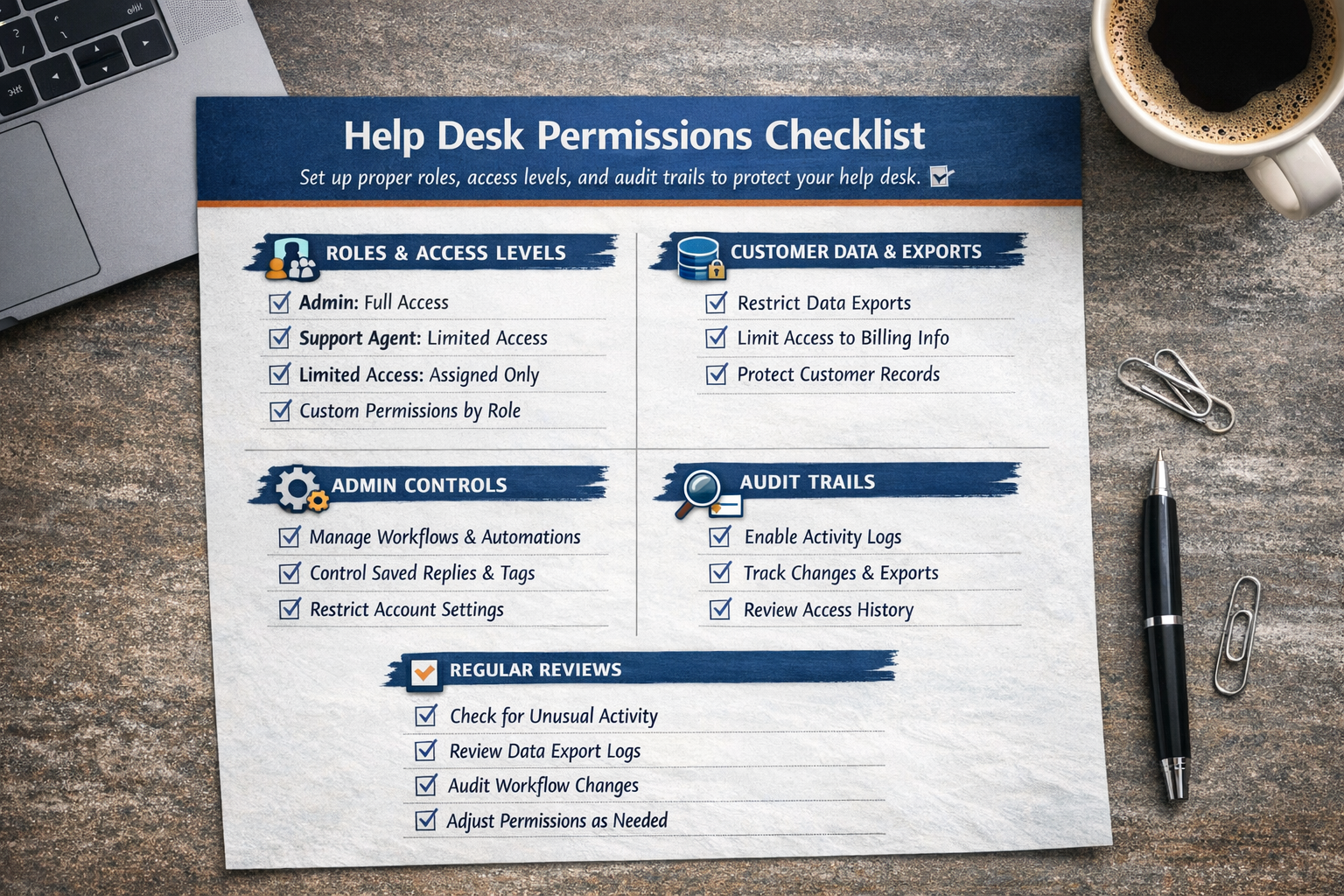
The recipe is simpler than it looks:
Create three roles: Admin, Support Agent, and Limited Access
Assign permissions based on actual need, not convenience
Enable audit trail notifications for sensitive actions
Review quarterly and adjust as your team evolves
Whether you're setting up your first help desk or cleaning up a messy configuration, these steps work. And if the thought of implementing all this makes your eyes glaze over, that's exactly the kind of operational detail that gets handled during Evergreen Support's $1 onboarding—we configure permissions, roles, and audit settings as part of getting your support system ready.
The point isn't perfection. It's having enough structure that your small team can move fast without worrying about who accidentally broke what.
Ready to hand off your support inbox to a team that understands small-business operations? Book a call with Evergreen Support to see how we implement these systems during onboarding—so you don't have to.
Frequently Asked Questions
How do I know which permission level to give a new hire?
Start with the Support Agent role described above—conversation access, saved replies, and tagging. After 30 days, evaluate whether they need additional permissions based on their actual work. Most support roles never need admin-level access, and starting restrictive prevents accidental data exposure or system changes while they're learning.
Should I give my outsourced support partner admin access?
Generally, no. A good outsourced partner works within your existing system rather than restructuring it. They need conversation access, saved replies, and tagging permissions—not the ability to modify your workflows or export customer data. Clear boundaries actually make collaboration easier because responsibilities stay obvious.
What's the minimum audit trail setup for a tiny team?
At minimum, enable notifications for data exports and workflow changes. These two categories catch the most consequential actions. A monthly five-minute review of your activity logs handles everything else. You're not looking for perfection—just enough visibility to catch problems before they compound.
Can I set up different permissions for different inboxes or brands?
Yes, most platforms support inbox-level or team-level permissions. This works well if you manage multiple brands or want to segment access (for example, keeping billing inquiries visible only to certain team members). Check your platform's team or mailbox settings to configure this—it's usually simpler than it sounds.
How often should I review and update our permission settings?
Quarterly works for most small teams. Also review whenever someone's role changes, someone leaves, or you bring on new help. The goal is catching permission drift—those gradual expansions that happen when you grant access "just this once" and forget to revoke it later.
About Evergreen Support
Evergreen Support provides US-based, human-powered email support for small SaaS and ecommerce businesses. Founded by Emma Fletcher and Ellis Annichine, our team specializes in taking over day-to-day customer support so founders can focus on growing their business instead of managing their inbox. We've helped dozens of small teams implement efficient support systems—including proper permission structures—during our hands-on onboarding process. Every client works with two dedicated agents who learn your brand voice and handle tickets within 24 hours, Monday through Friday.
Cited Works
[1] CISA — "Principle of Least Privilege." https://www.cisa.gov/uscert/bsi/articles/knowledge/principles/least-privilege
[2] Help Scout — "Managing Users and Permissions." https://docs.helpscout.com/article/167-managing-users
[3] Zendesk — "Understanding Zendesk Support User Roles." https://support.zendesk.com/hc/en-us/articles/4408882153882-Understanding-Zendesk-Support-user-roles
[4] Front — "Roles and Permissions in Front."
https://help.front.com/en/articles/2138
[5] Evergreen Support — "Customer Support Agency Pricing." https://www.evergreensupport.co/pricing


