
Your support team just sent a perfect response. Helpful, empathetic, thorough. The customer never saw it.
It landed in spam. Or worse—it bounced entirely, vanishing into the void while your customer waits, frustrated, assuming you ignored them.
Support email deliverability isn't something most founders think about until it becomes a crisis. You're focused on response time, tone, actually solving problems. Meanwhile, technical authentication failures are quietly sabotaging your customer relationships.
Here's the uncomfortable truth: if your SPF, DKIM, and DMARC records aren't configured correctly, Gmail and Outlook might be filtering your support replies before customers ever see them. And unlike marketing emails where you track open rates obsessively, support email failures often go unnoticed until a customer complains on social media or simply churns.
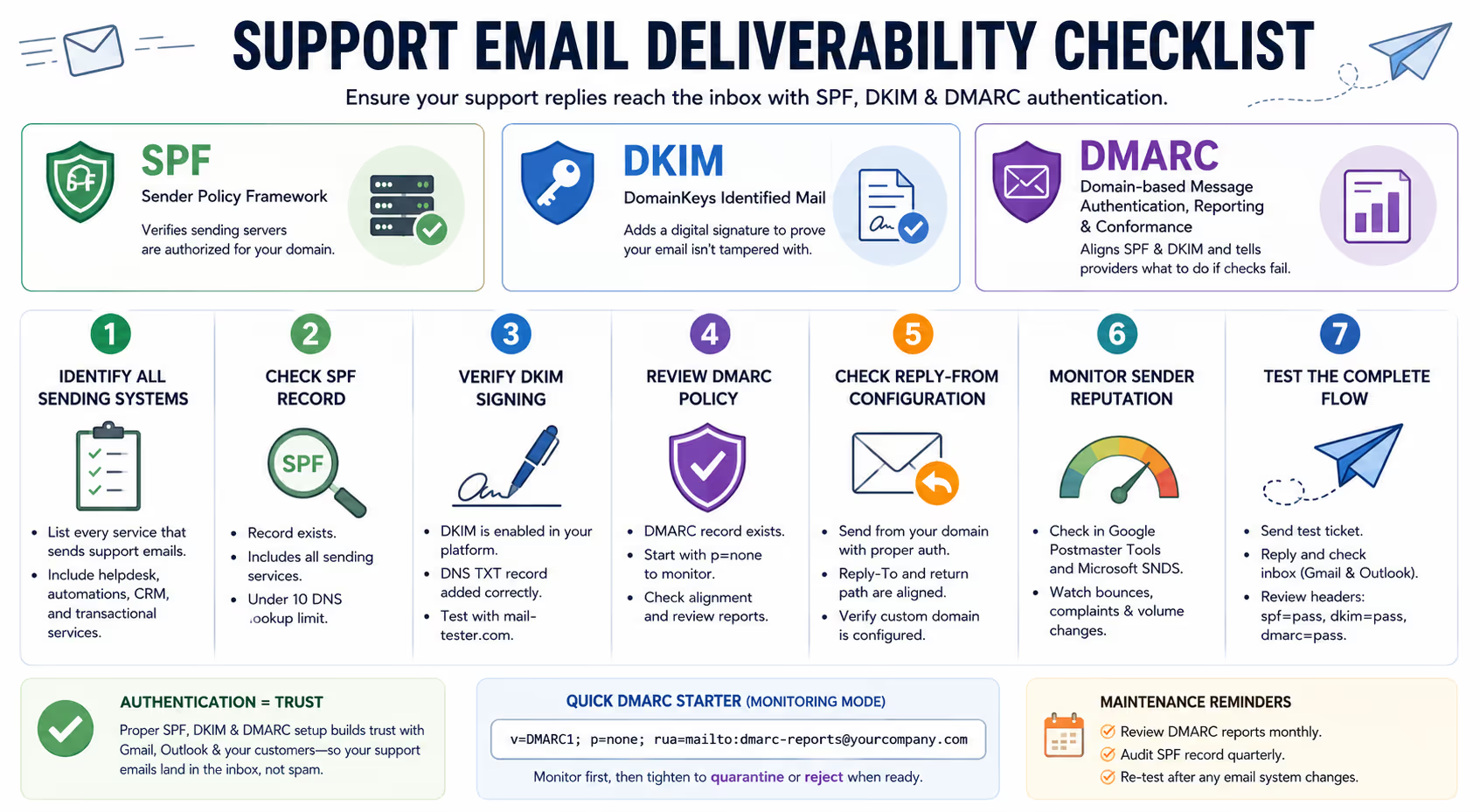
This checklist walks you through auditing your support email deliverability—step by step—so your carefully crafted replies actually reach the inbox.
Why Support Email Deliverability Gets Ignored (Until It's a Problem)
Marketing teams obsess over email deliverability because their metrics depend on it. Open rates, click-through rates, conversion tracking—everything screams when something breaks.
Support email? Different story.
When a support reply disappears, you don't get a dashboard alert. You get silence. Maybe a follow-up ticket days later: "I never heard back from you." Maybe a one-star review. Maybe nothing at all—the customer just leaves.
The problem compounds because support emails often look suspicious to spam filters. They frequently contain:
Links to help articles or account pages
Order numbers and transaction details
Language about refunds, cancellations, or account issues
Replies from shared inboxes or helpdesk platforms
Email providers like Gmail and Microsoft have tightened authentication requirements significantly over the past two years [1]. What worked in 2022 might land in spam today. And the rules apply equally whether you're sending newsletters or replying to a customer asking where their order is.
The Three Authentication Protocols That Determine Your Fate
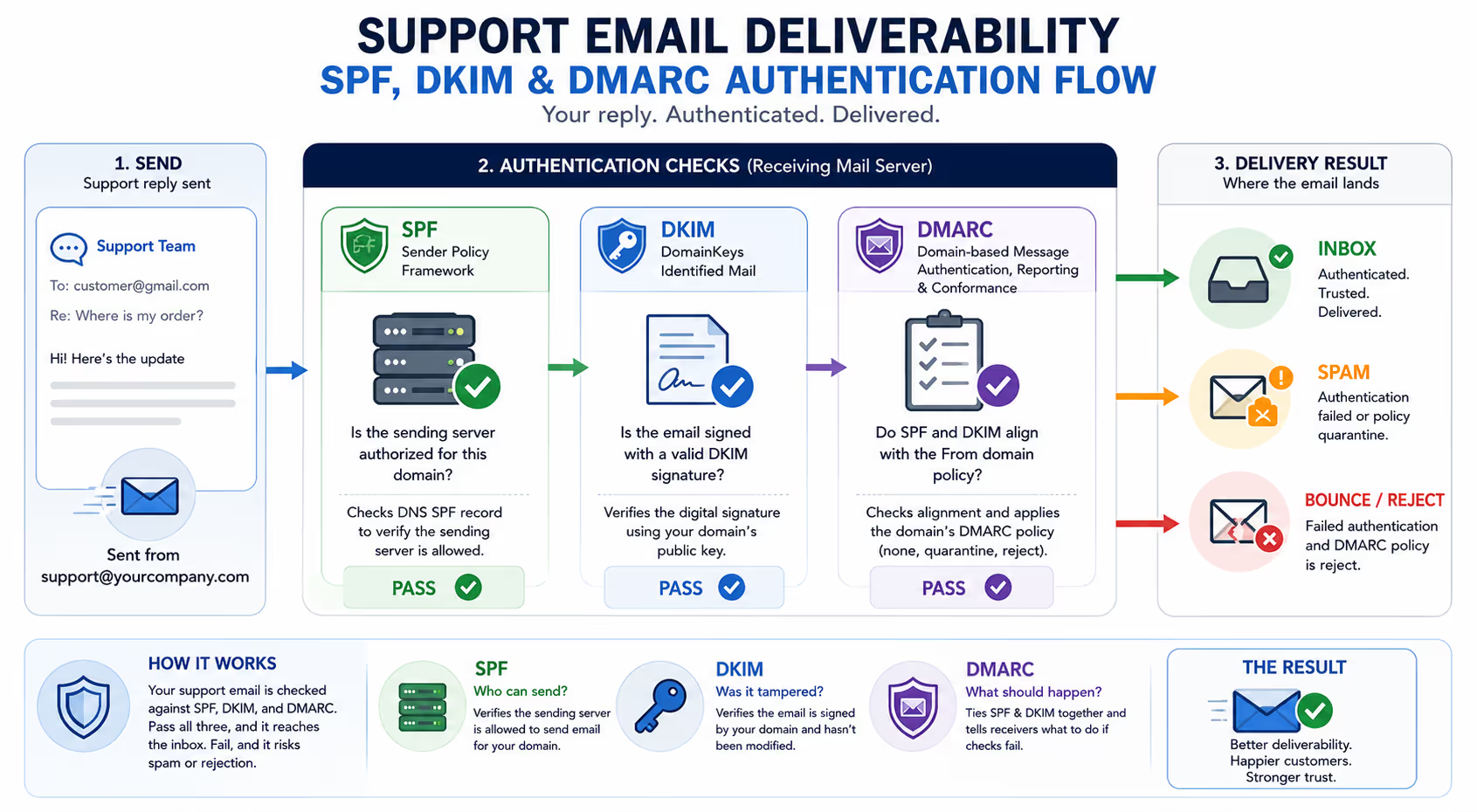
Before diving into the audit checklist, you need to understand what SPF, DKIM, and DMARC actually do. These aren't just acronyms your IT person mentioned once—they're the gatekeepers determining whether your emails reach customers.
SPF (Sender Policy Framework)
SPF tells receiving email servers which servers are authorized to send email on behalf of your domain [2]. Think of it as a guest list. When Gmail receives an email claiming to be from yourcompany.com, it checks the SPF record to see if the sending server is on the approved list.
For support teams, SPF gets complicated fast. You might send emails from:
Your helpdesk platform (Zendesk, HelpScout, Intercom, etc.)
Your main email provider (Google Workspace, Microsoft 365)
Your app's transactional email service
Backup or overflow systems
Every single one needs to be in your SPF record. Miss one, and those emails might fail authentication.
DKIM (DomainKeys Identified Mail)
DKIM adds a digital signature to your emails, proving they haven't been tampered with in transit [3]. It's like a wax seal on a letter—if someone intercepts and modifies the message, the seal breaks.
Your helpdesk platform generates a unique DKIM key that you add to your DNS records. When you reply to a customer, the platform signs the email. The receiving server checks that signature against your DNS record.
No valid signature? The email looks suspicious.
DMARC (Domain-based Message Authentication, Reporting, and Conformance)
DMARC ties SPF and DKIM together and tells email providers what to do when authentication fails [4]. It also generates reports showing you exactly what's happening with emails sent from your domain.
The three DMARC policies are:
None: Monitor only, don't reject anything
Quarantine: Send suspicious emails to spam
Reject: Block failed emails entirely
Most companies start with "none" to gather data, then gradually tighten to "quarantine" or "reject." But here's the catch: if your support emails aren't properly authenticated, a strict DMARC policy will block your own replies.
The Support Email Deliverability Audit Checklist
Now for the practical part. Work through this checklist systematically. Don't skip steps—one misconfiguration can undermine everything else.
Step 1: Identify Every System Sending Support Email
Before checking anything technical, map out every service that sends email on behalf of your domain. For support specifically, this typically includes:
Your helpdesk or shared inbox platform
Any automation tools that send ticket updates
Your CRM if it sends support-related messages
Transactional email services handling password resets, order confirmations, etc.
Write them all down. You'll need this list for the next steps.
Step 2: Check Your SPF Record
Use a free SPF lookup tool (MXToolbox, Google Admin Toolbox, or similar) to see your current SPF record [5].
What to look for:
Does the record exist? (If not, that's your first problem.)
Does it include all the services from Step 1?
Is it under the 10-lookup limit? SPF has a hard limit of 10 DNS lookups. Exceed it, and the entire record fails.
Common support-specific issues:
Your helpdesk platform needs to be explicitly included. If you're using HelpScout, for example, their sending servers must be in your SPF record. Same for Zendesk, Freshdesk, Intercom, or whatever you use.
Check your platform's documentation for the exact SPF include statement. It usually looks something like: include:helpscout.net or similar.
Troubleshooting the 10-lookup limit:
Small businesses often hit this ceiling quickly. Each "include" statement can trigger multiple lookups. If you're over the limit, consider:
Removing services you no longer use
Using an SPF flattening service (converts includes to IP addresses)
Consolidating email services where possible
Step 3: Verify DKIM Signing Is Active
DKIM configuration happens in two places: your DNS records and your sending platform's settings.
In your helpdesk platform:
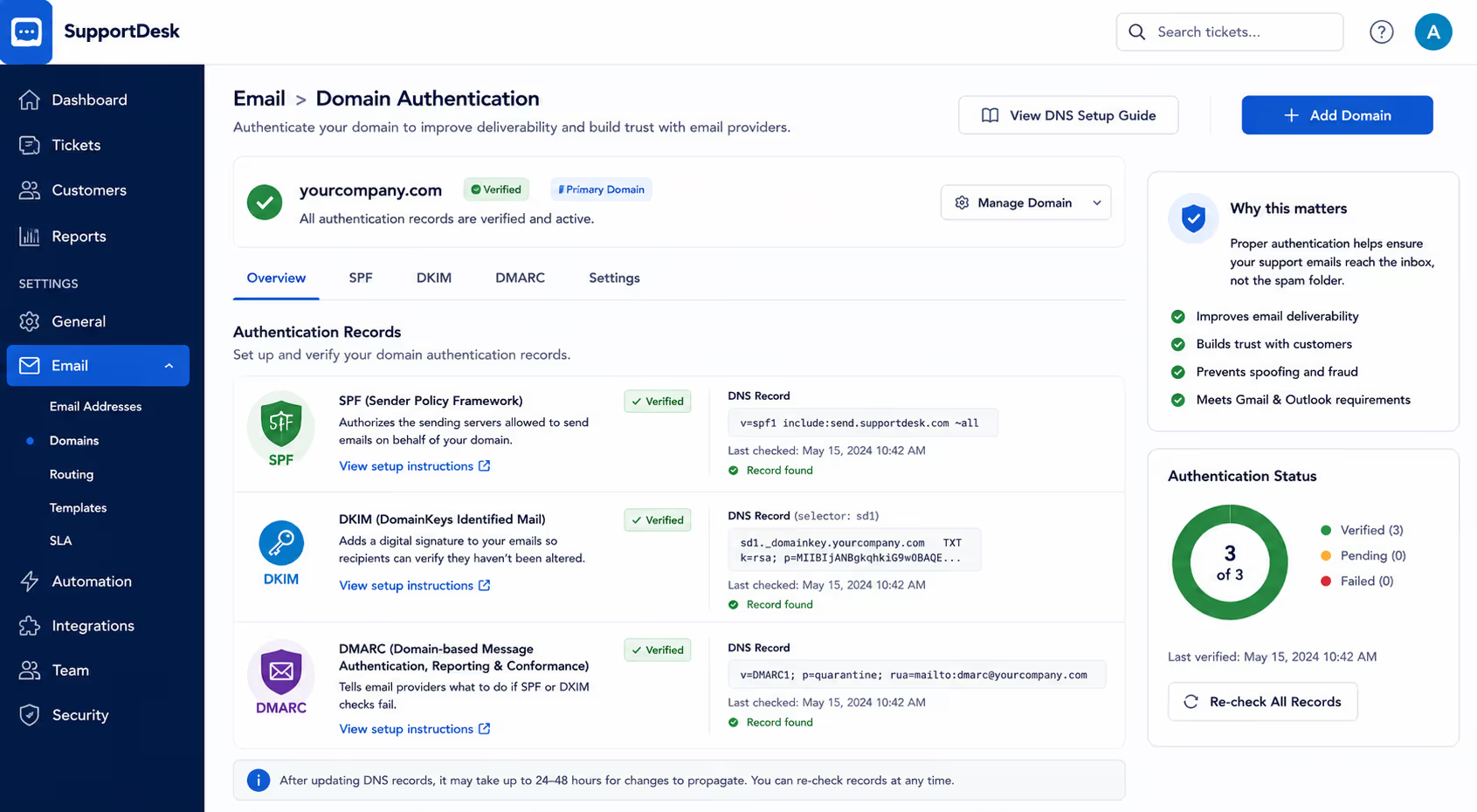
Look for email authentication or domain verification settings. Most platforms walk you through generating a DKIM key and adding it to your DNS. The key thing: you must complete both sides. Generating the key in your platform does nothing if you never add the DNS record.
Testing DKIM:
Send a test email from your support system to a testing service (mail-tester.com is free and thorough). The results will show whether DKIM is passing, failing, or missing entirely.
Common issues:
DKIM key exists in DNS but platform isn't set to sign emails
Key was generated for old domain or subdomain
Copy-paste errors when adding the TXT record (these records are long and fragile)
Step 4: Review Your DMARC Policy
Look up your DMARC record using a DMARC checker tool.
If you don't have a DMARC record:
You're flying blind. Email providers are increasingly requiring DMARC for reliable delivery [6]. Start with a monitoring-only policy:
v=DMARC1; p=none; rua=mailto:dmarc-reports@yourcompany.com
This tells providers to send you reports without rejecting anything. You'll see exactly which emails are failing authentication.
If you have a DMARC record:
Check the policy level. If it's set to "quarantine" or "reject," legitimate support emails that fail authentication will be filtered or blocked. Review your DMARC reports to see if support platform emails are passing.
The alignment requirement:
DMARC requires "alignment"—the domain in your From address must match the domain authenticated by SPF or DKIM [7]. This trips up support teams when:
Your helpdesk sends from support@yourcompany.com but authenticates as helpdesk-platform.com
You're using a subdomain (support.yourcompany.com) without matching authentication
Custom sending domains aren't properly configured in your platform
Most helpdesk platforms support custom DKIM signing so emails authenticate as your domain. Make sure this is configured, not just available.
Step 5: Check Your Reply-From Domain Configuration
Here's where support email differs significantly from marketing. When you reply to a customer, the email headers tell a story. Spam filters examine:
The From address customers see
The Reply-To address
The envelope sender (often hidden but critical)
The return path for bounces
Many helpdesk platforms default to sending from their own domain with your address as a display name only. This can trigger spam filters because there's a mismatch between what the customer sees and what's actually authenticated.
The fix:
Configure your helpdesk to send from your actual domain with proper authentication. This usually requires:
Adding your domain in the platform settings
Verifying ownership (often via DNS)
Setting up DKIM for that specific domain
Updating SPF to include the platform's servers
Yes, it's more setup. But it dramatically improves deliverability.
Step 6: Monitor Your Sender Reputation
Even with perfect authentication, your emails can land in spam if your domain or IP has a poor reputation.
Check your domain reputation:
Google Postmaster Tools provides reputation data if you send significant volume to Gmail addresses [8]. Microsoft offers similar tools through their SNDS (Smart Network Data Services) program.
What hurts support email reputation:
High bounce rates (sending to invalid addresses)
Spam complaints from recipients
Sudden volume spikes
Getting caught in spam traps
For support teams, bounces usually come from customers who gave incorrect email addresses. Consider implementing email validation at signup to reduce this.
Step 7: Test the Complete Flow
Don't assume everything works because individual pieces check out. Test the entire support email flow:
Create a test ticket from a personal Gmail account
Reply from your support system
Check where the reply lands (inbox, spam, promotions tab)
Examine the email headers for authentication results
Repeat with a Microsoft/Outlook account
Gmail and Microsoft handle email differently. You might pass one and fail the other.
Reading authentication headers:
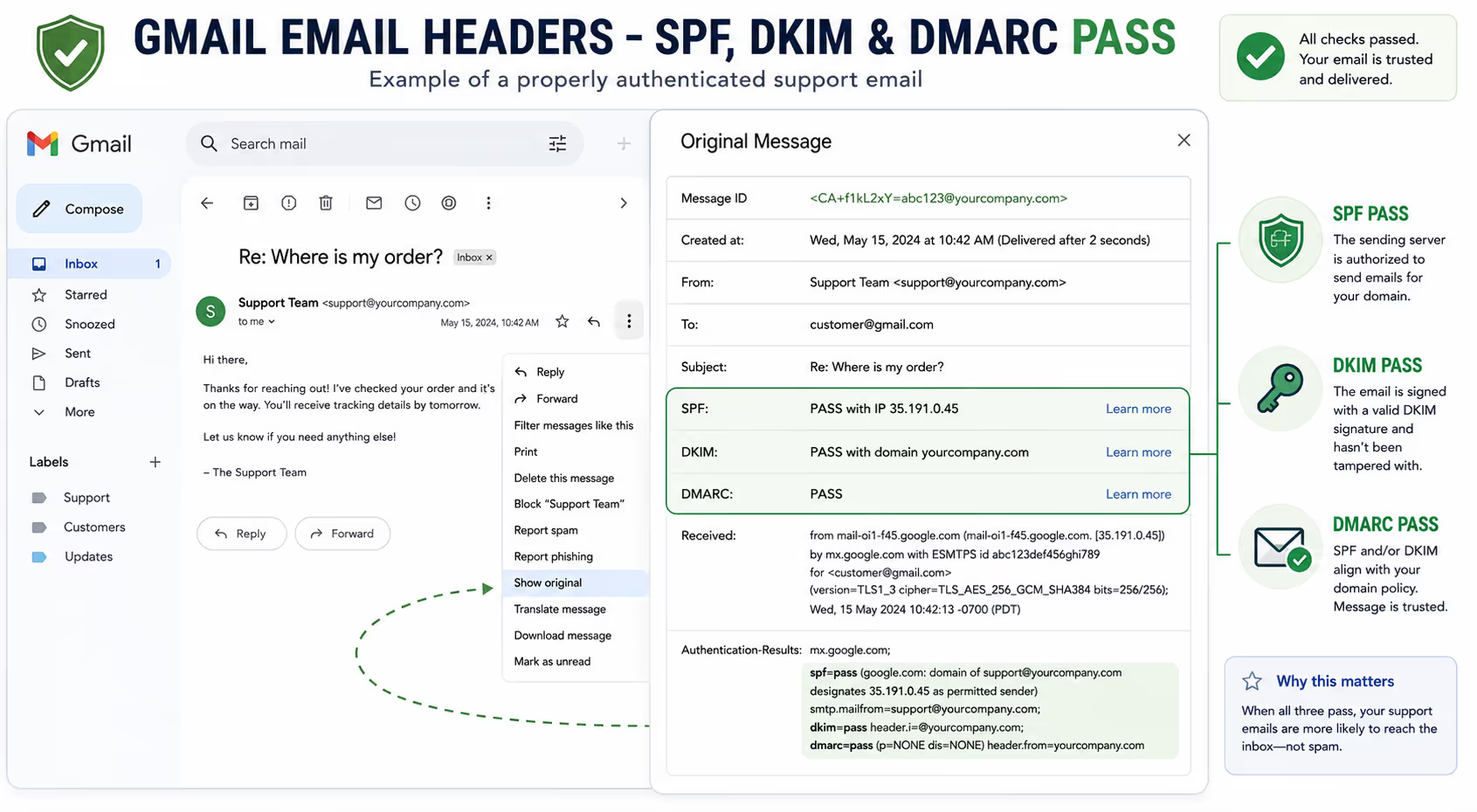
In Gmail, click the three dots on an email and select "Show original." Look for these lines:
spf=pass
dkim=pass
dmarc=pass
Any "fail" or "softfail" indicates a problem. The headers also show which domain was checked, helping you identify misalignments.
Gmail and Outlook Sender Requirements You Need to Know
In early 2024, Gmail and Yahoo implemented stricter sender requirements [9]. While these primarily targeted bulk senders, the authentication standards affect everyone.
Gmail now requires:
Valid SPF or DKIM authentication
Valid DMARC record with at least "p=none"
Spam complaint rates below 0.3%
One-click unsubscribe for promotional messages (less relevant for support)
Microsoft Outlook's approach:
Microsoft uses a reputation-based system called SmartScreen plus authentication checks [10]. They're particularly sensitive to:
Domain age and history
Engagement patterns (do recipients open and reply?)
Authentication alignment
Sudden changes in sending patterns
Support emails often fare better with Microsoft because they're conversational—customers reply, which signals legitimacy. But authentication failures will still cause problems.
Common Support-Specific Deliverability Problems (And How to Fix Them)
Problem: Replies Go to Spam, Original Tickets Don't
This usually means your helpdesk platform's reply mechanism isn't properly authenticated. Initial tickets might come through a web form (no email authentication needed), but replies are actual emails.
Fix: Verify DKIM signing is active for replies specifically. Check that your custom domain is set as the sending domain, not just the display name.
Problem: Some Customers Get Replies, Others Don't
Often indicates SPF issues with specific receiving servers or domain reputation problems.
Fix: Check if affected customers share an email provider. Test deliverability to that provider specifically. Review DMARC reports for patterns.
Problem: Attachments Trigger Spam Filters
Support emails frequently include attachments—screenshots, invoices, guides. Some configurations make these look suspicious.
Fix: Ensure attachments aren't the only content (always include text). Use standard file types. Consider linking to secure file shares instead of attaching large files.
Problem: High-Volume Days Cause Deliverability Drops
Sudden spikes trigger spam filter scrutiny. This hits support teams during outages, product launches, or sales events.
Fix: Warm up gradually when possible. If you know volume will spike, ensure authentication is bulletproof beforehand. Monitor reputation metrics more closely during high-volume periods.
When to Call for Backup
This checklist handles most support email deliverability issues. But some situations need specialized help:
Your domain is on a blacklist
You're recovering from a compromised email account
Complex multi-domain or multi-brand setups
Persistent issues despite correct configuration
Email deliverability consultants exist specifically for these scenarios. The investment is worth it if deliverability problems are costing you customers.
The Ongoing Maintenance Piece
Deliverability isn't set-and-forget. Build these checks into your routine:
Monthly:
Review DMARC reports for authentication failures
Check sender reputation in Google Postmaster Tools
Spot-check that test emails reach personal Gmail/Outlook accounts
When changing anything:
Adding a new helpdesk or email tool? Update SPF immediately
Changing email platforms? Test thoroughly before fully switching
New domain or subdomain? Full authentication setup required
Quarterly:
Audit all services in your SPF record (remove what you no longer use)
Review complaint rates and bounce rates
Update DMARC policy if you're ready to tighten from "none" to "quarantine"

Your Customers Deserve Replies They Actually Receive
You put effort into every support response. The authentication setup behind those responses deserves attention too.
Poor deliverability silently erodes customer trust. People who don't get replies assume you don't care—they don't know (or care) that it was a technical failure. They just know they asked for help and didn't get it.
The good news: once you work through this checklist, deliverability largely takes care of itself. The authentication protocols don't need daily attention. They just need correct setup and occasional maintenance.
One more thing: if you're considering outsourcing your support email, deliverability should be part of that conversation. Any agency worth working with will either audit your setup or work within your existing authenticated systems. At Evergreen Support, our Inbox Audit specifically includes deliverability checks—because it doesn't matter how good the support is if customers never see it.
Ready to make sure your support emails actually reach customers? Request an Inbox Audit and we'll assess your deliverability setup alongside your overall support operations.
Frequently Asked Questions
How do I know if my support emails are going to spam?
The most reliable method is testing. Send support replies to personal Gmail and Outlook accounts you control, then check where they land. Also monitor for customer complaints about not receiving responses—this is often the first sign of deliverability issues. DMARC reports provide data on authentication failures, though they require some technical knowledge to interpret.
Can I fix deliverability issues without technical help?
Many issues are fixable without deep technical expertise. Most helpdesk platforms provide step-by-step guides for setting up SPF and DKIM. Free tools like MXToolbox and mail-tester.com diagnose problems in plain language. However, complex setups involving multiple domains or legacy systems may benefit from professional assistance.
How long does it take for authentication changes to take effect?
DNS changes typically propagate within 24-48 hours, though some receiving servers may take longer to recognize updates. After making changes, wait at least 48 hours before testing. Sender reputation improvements take longer—weeks to months depending on your sending volume and the severity of previous issues.
Will these authentication requirements affect my regular business email too?
Yes. SPF, DKIM, and DMARC apply to all email sent from your domain, not just support. This is actually beneficial—getting authentication right improves deliverability for every email your company sends. The configuration work serves your entire organization.
What happens if I ignore these authentication requirements?
Increasingly, your emails simply won't reach recipients. Gmail, Microsoft, and other major providers are enforcing authentication more strictly each year. Without proper SPF, DKIM, and DMARC, your support replies may land in spam folders or be rejected entirely—and you likely won't know until customers complain or leave.
About Evergreen Support
Evergreen Support is a US-based customer support agency serving small SaaS and ecommerce businesses. We handle daily email support so founders can focus on growing their companies instead of managing inboxes. Our team conducts thorough Inbox Audits—including deliverability assessments—before taking over support operations, ensuring customers actually receive the responses we send on your behalf.
Works Cited
Internet Engineering Task Force — "RFC 7208: Sender Policy Framework (SPF)." https://datatracker.ietf.org/doc/html/rfc7208
MXToolbox — "SPF Record Lookup."
https://mxtoolbox.com/spf.aspx
DMARC.org — "How DMARC Works."
https://dmarc.org/overview/
Google — "Postmaster Tools."
https://postmaster.google.com/
Microsoft — "Fighting junk email sent to Exchange Online." https://learn.microsoft.com/en-us/exchange/antispam-and-antimalware/antispam-protection/antispam-protection


